Launch Apple Messages for Business
The full path from zero to live on Apple Messages for Business with Blooio as your MSP: eligibility, Apple Business Register, testers, connecting to Blooio, building the experience, entry points and Message Suggest, brand assets, and go-live.
This guide covers everything between deciding you want Apple Messages for Business and your first real customer conversation. It assumes Blooio is your Messaging Service Provider (MSP). Plan on a few weeks end to end. Most of that time goes on building and testing the experience, not on paperwork.
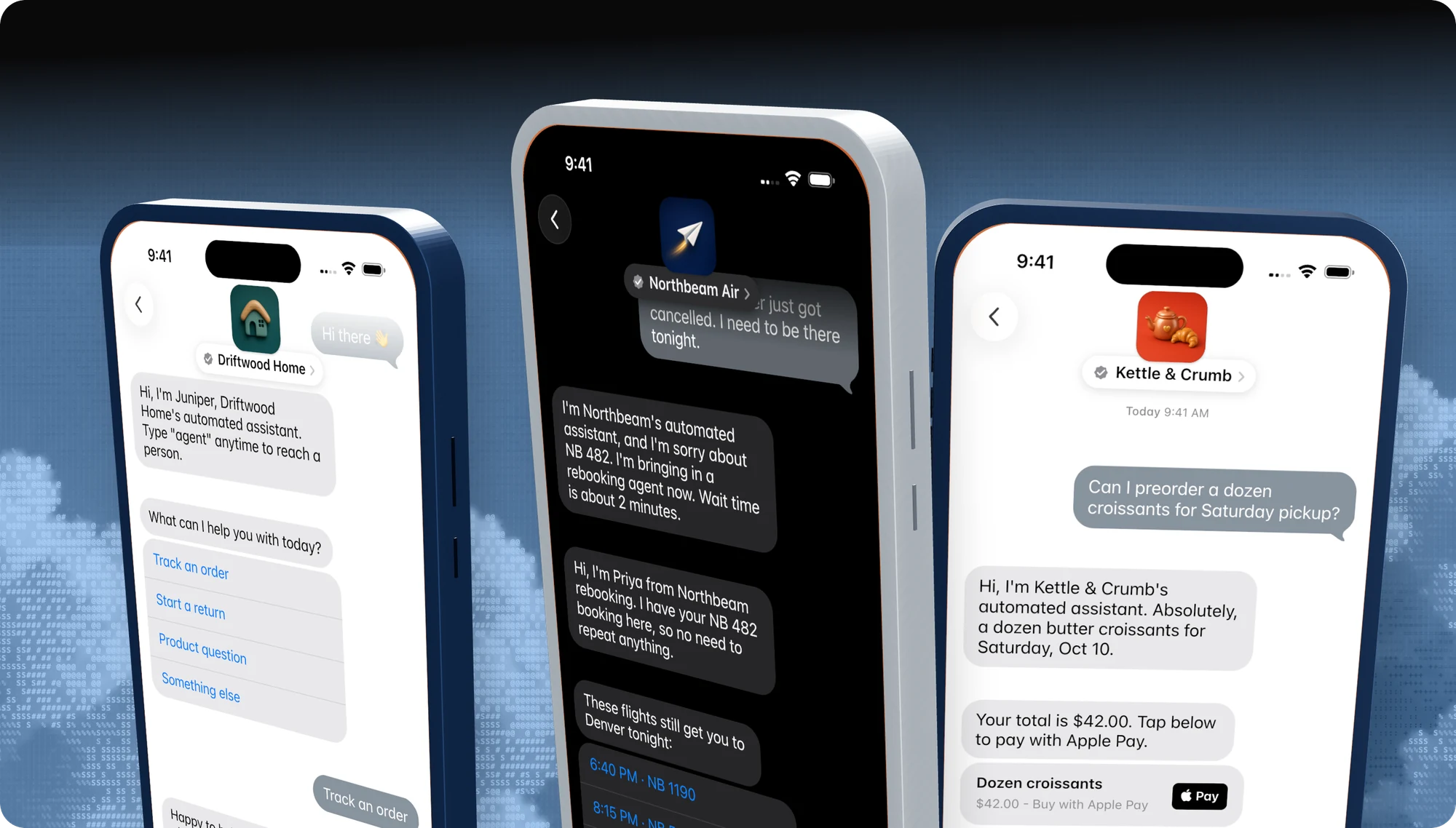
Skip all of this
Blooio can do every step on this page for you.
We register alongside you, connect the account, build a managed bot that already meets Apple's review criteria with a human in the loop, submit the Experience Review, and set up your entry points.
The roadmap
Who does what, in order. Click a step for detail and links.
Before you start
Check these before you register. They rule out more launches than anything technical:
- One commercial account per business. Every brand line, region, and use case shares it.
- You must own the brand. Franchisees go through the brand owner.
- A live agent is mandatory. Apple does not approve bot-only deployments. A person must be reachable in the channel during business hours.
- Restricted categories. Apple won't onboard businesses built around tobacco or vaping, weapons, gambling, adult content, illegal goods, political organizations, prepaid currency, or similar categories. It is also not currently onboarding businesses that mainly offer medical or health services. See Apple's Policies for the complete list.
- Customers start the conversation. You can message people who are in an active conversation or who opted in to notifications. Marketing needs an explicit subscribe. There is no cold outreach.
Choose your MSP
Apple doesn't let brands connect bots or agent consoles directly. Every business goes through an Apple-approved MSP that handles delivery, routing, interactive features, automation, the agent console, and back-end integrations. Apple provides the channel at no charge; the MSP sets its own pricing.
Blooio is an approved MSP. On Blooio, Apple Messages for Business is a channel (channel_type: "amb") on the same v4 API, webhooks, and dashboard you use for iMessage, SMS, RCS, and WhatsApp. See the overview.
Register with Apple
In Apple Business Register (roughly 30 to 45 minutes):
- Choose Get Started and sign in with a business or Managed Apple Account on your corporate email. Personal Apple Accounts are refused.
- Accept the Apple Messages for Business and Apple Business Register terms.
- Enter your organization details and choose Internal test account as the account type.
- Add a technical contact.
You start in test mode. Nothing is visible to the public until after the Experience Review.
Select Blooio and add testers
In Messaging Service Provider Configuration, select Blooio from the authorized platform list. Use Advanced only if Blooio gives you a custom endpoint.
Next, add testers: choose Add Apple Accounts, enter the Apple Account each person uses on their test iPhone (yours, your stakeholders', and Blooio's team), and press Submit. Testers aren't saved without that submit. Testers added later can take up to 24 hours to activate.
Connect to Blooio
- In Apple Business Register, open your account, scroll to the MSP configuration, and choose Test your Messaging Service Provider connection.
- Choose Connect next to Blooio. Blooio's linking page opens and attaches your Apple Business ID to your Blooio organization.
- Back in the Blooio dashboard, open Integrations → Apple Messages for Business, confirm the channel, and give it an alias such as
support.
If Connect is missing or greyed out, the account isn't ready yet. Wait a few minutes and refresh. Linking problems are solved by the MSP, not Apple, so message Blooio support.
Build the experience
Start from your top five use cases (the reasons customers contact you most) and design each as a short, tap-first flow. Pick features by job:
| Job | Feature | Blooio guide |
|---|---|---|
| Triage, yes/no, short choices (2 to 5) | Quick Reply | Interactive messages |
| Catalogues, locations, longer menus with images | List Picker | Interactive messages |
| Appointments, deliveries, service slots | Time Picker | Interactive messages |
| Multi-step intake, surveys, sign-ups | Form | Interactive messages |
| Checkout and deposits | Apple Pay | Apple Pay |
| Account lookups, order history | Authentication (OAuth 2.0) | Sign in |
| Articles, product pages, video, maps | Rich Link | Rich links & media |
| Proactive, opted-in outreach | Business invitation | Business invitations |
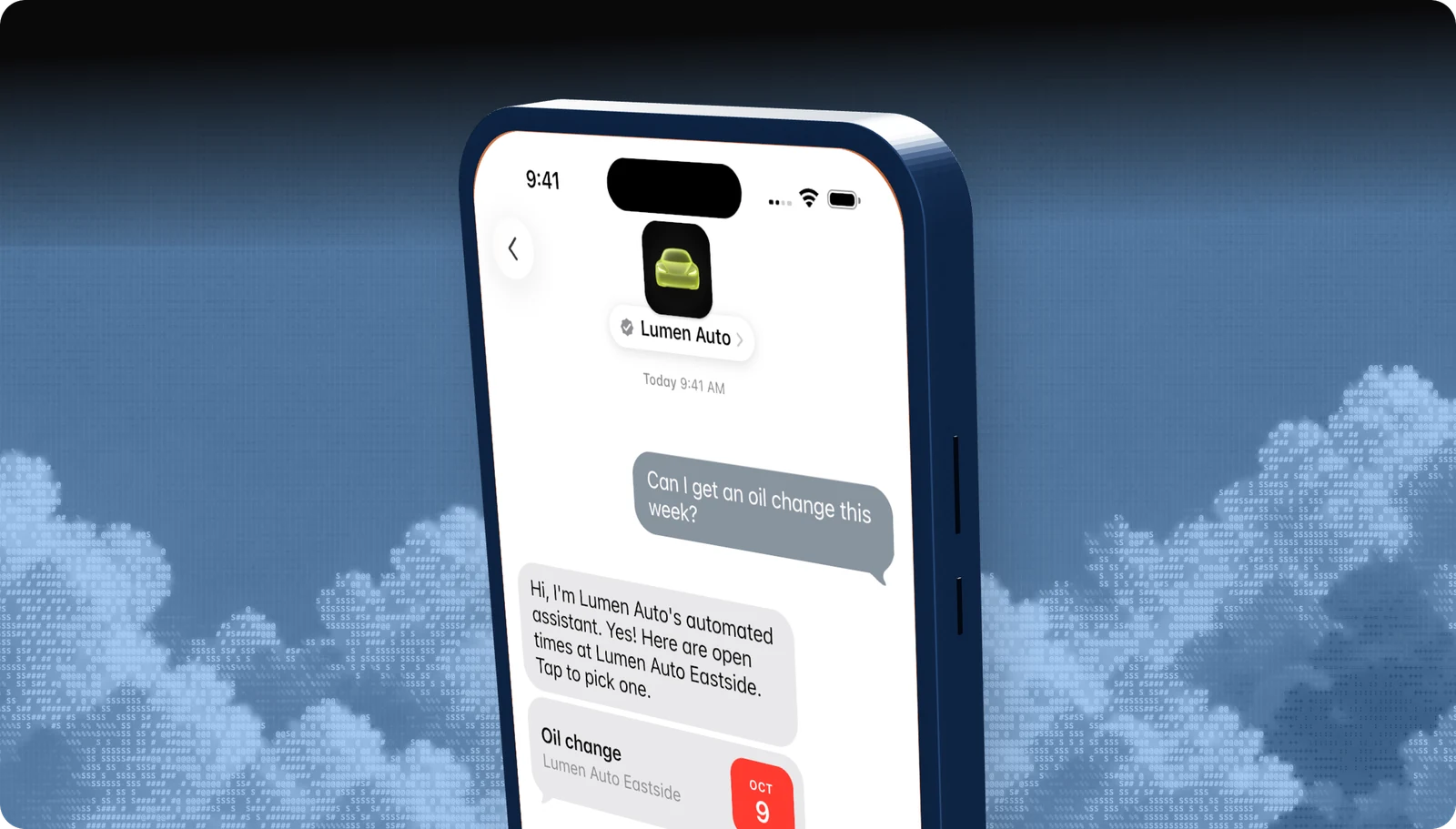
Then wire in the parts Apple will test:
- An automated welcome with disclosure, sent within five seconds.
- A triage Quick Reply for unknown intent.
- Live agent routing with transfer notices, wait times, and agent names.
- Out-of-hours replies from your configured response hours.
- Keyword handling for agent, menu, and unsubscribe, plus their alternatives.
- Typing indicators before each message.
The Experience Review guide lists every requirement with the Blooio implementation. On the managed bot all of it is configuration: you supply use cases, systems, hours, and tone, and Blooio builds and tests the flows.
Entry points
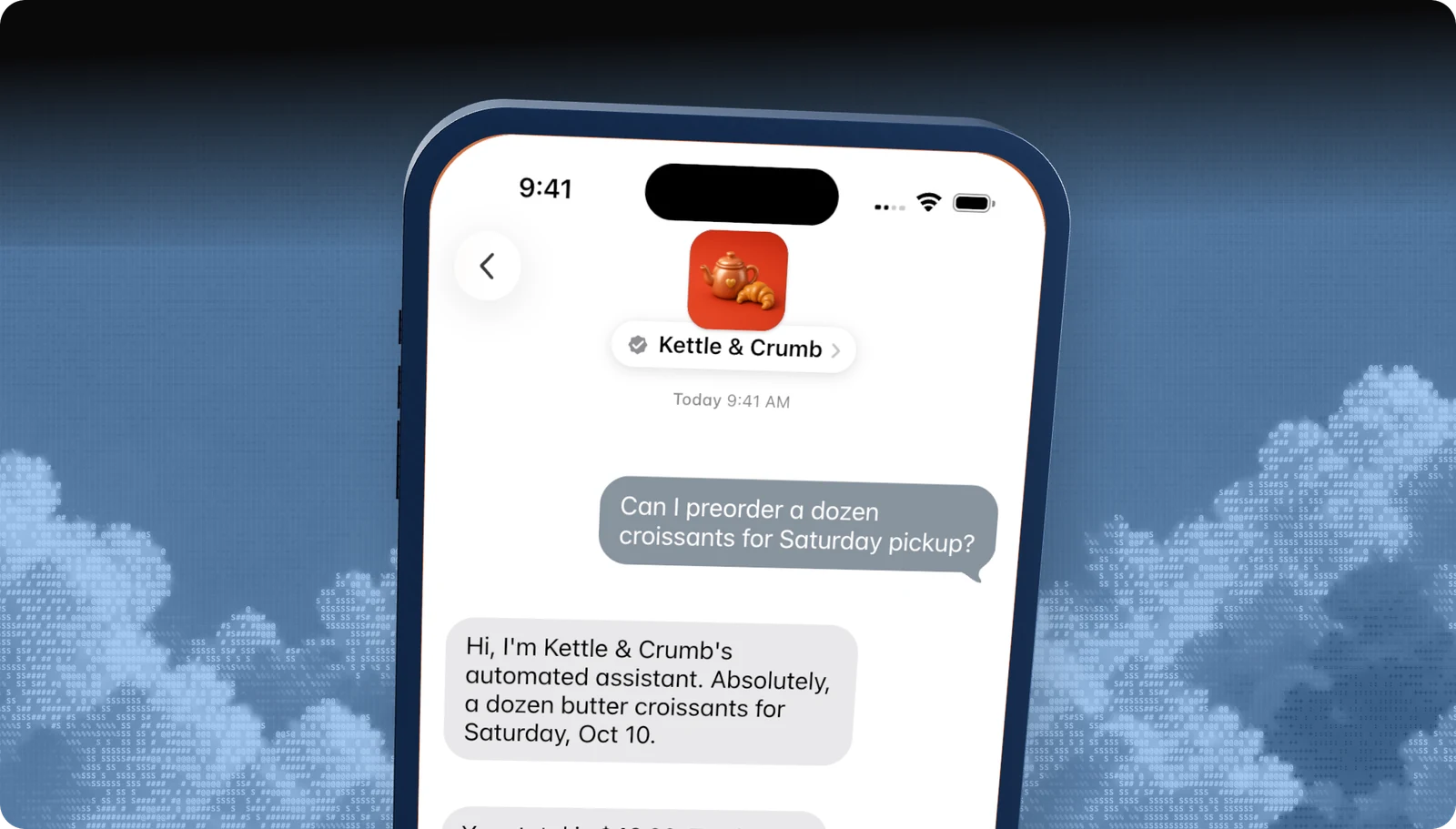
Customers can only reach you through an entry point, and the channel is only as busy as your entry points are visible.
| Entry point | Where it shows up | Notes |
|---|---|---|
| Messages button | Website, mobile site, app, emails | Use one of Apple's call-to-action buttons: Message Us, Contact an Agent, Ask a Question, or Get Help. |
| Apple Maps | Your place card | Enabled together with the Business Card and Message Suggest by the "Show Message buttons" option in Apple Business Register. |
| Message Suggest | When someone taps your phone number | Offers message instead of call. Configured by Apple from a form you email. |
| QR codes and NFC | Packaging, receipts, stores, signage | Encode an entry point URL. |
| Links | Email, SMS, app, social | Same URL format. |
| Wallet passes | Boarding passes, tickets, loyalty cards | Linked from the pass. |
Don't switch entry points on before the account is approved to go live. Once live, keep them on around the clock and let automation answer when agents are away.
Entry point URLs
Every entry point opens a URL built from your Business ID. Optional parameters tell Blooio where the customer came from and what they want:
https://bcrw.apple.com/urn:biz:<business-id>?biz-intent-id=order_status&biz-group-id=post_sales&body=Where%20is%20my%20order%3F| Parameter | Use it for | Example |
|---|---|---|
biz-intent-id |
The use case or placement that started the conversation. Blooio uses it to skip triage and to report by entry point. | order_status, book_service |
biz-group-id |
The team to route to. | post_sales, reservations |
body |
Pre-filled text so the customer only taps Send. | Where%20is%20my%20order%3F |
Give every placement its own intent ID, even if you don't route on it yet, so you can see which ones work. Keep reserved URI characters (& # [ ] ( ) { } /) out of parameter values.
Place buttons where questions happen: contact and help pages, order confirmations, product pages, and checkout. A label that sets expectations ("Questions about sizing? Ask us in Apple Messages") does better than an icon alone.
Message Suggest
Message Suggest is the strongest call-deflection lever on the channel. When an iPhone user taps one of your registered numbers on your website, in search, or in Maps, they're offered a chat instead of a call. Apple configures it from a form you email to Apple Business Register. You'll need your high-volume numbers, phone hours, the title and subtitle to display, translations, intent and body parameters per number, and current call volume and agent counts. Register every busy line rather than only the main number, make the numbers tappable on your site, and allow about a week to propagate. Blooio prepares the form with you.
Naming in your UI
Customer-facing copy says Apple Messages for Business or Apple Messages. Never "iMessage", never "Messages for Business" without Apple, and avoid "chat" or "text" on the button. Apple's entry point and naming guidance has the approved button artwork.
Brand assets
Apple configures your commercial account after the Experience Review, but prepare the assets early:
| Asset | Requirement |
|---|---|
| Business name | Your brand as customers know it, with no location ("Northbeam Air", not "Northbeam Air Denver") and no LLC, Inc., Ltd, or similar. |
| Square logo (required) | PNG or JPEG, at least 1024 × 1024, solid full-colour background (no photo), about 10% padding, 2 MB max, sRGB or P3. Since iOS 26 and macOS 26 this is the only logo shown, so it has to read at small sizes. |
| Wide logo (legacy) | Transparent PNG, 6.66:1, at least 256 px tall. Shown only on iOS 18 and earlier. |
| Response hours | Support hours and typical live-agent response time. |
| Account type | Online only, one public location, or multiple public locations. |




Square logos that work at icon size: one subject, full-bleed colour, generous padding.
Pass the Experience Review
Once the build is complete and device-tested, Blooio submits it. Everything Apple checks, and how to meet it, is in Pass the Experience Review.
Go live
After approval, Apple switches the account to commercial. Then:
- In Apple Business Register, open the account, choose Get Started, and enter the name, logos, hours, and account type. This is exactly what customers will see.
- Choose Send Now. Apple usually reviews it in one to three business days and emails you when it's done.
- Turn on entry points: website buttons, Maps (via "Show Message buttons"), Message Suggest, QR codes, and links.
- Watch the first week's conversations in Blooio, and expect ongoing experience drift checks.
Test device troubleshooting
| Symptom | Fix |
|---|---|
| "Not Delivered" to the test business | Make sure iMessage is on and signed in (Settings → Apps → Messages → Send & Receive), the tester is on the approved list, and the testers were submitted. Toggle iMessage off and on and retry after a few minutes. New testers can take up to 24 hours. |
| Message Suggest doesn't appear | The device region must match the business country. Tap the number without the country code. Allow time after setup to sync. |
| MSP connection won't verify | Ask Blooio to re-confirm from our side; Apple can't help with MSP linking. |
| Registration stuck in review | Look for pending actions in Apple Business Register and in the Apple Account's email, then use Help to contact Apple. |