Apple Messages for Business entry points
Every way a customer can start an Apple Messages for Business conversation: bcrw, sms:, and imessage: links, intent and group parameters, the website button, apps, QR codes, Message Suggest, Apple Maps, and how routing reaches your webhook.
Customers always start an Apple Messages for Business conversation, so they need somewhere to tap. That place is an entry point: a website button, a link in an email, a QR code on a receipt, your place card in Apple Maps, or the prompt iPhone shows when someone taps your phone number. This page covers every entry point, the link behind each one, and how the context it carries reaches you.
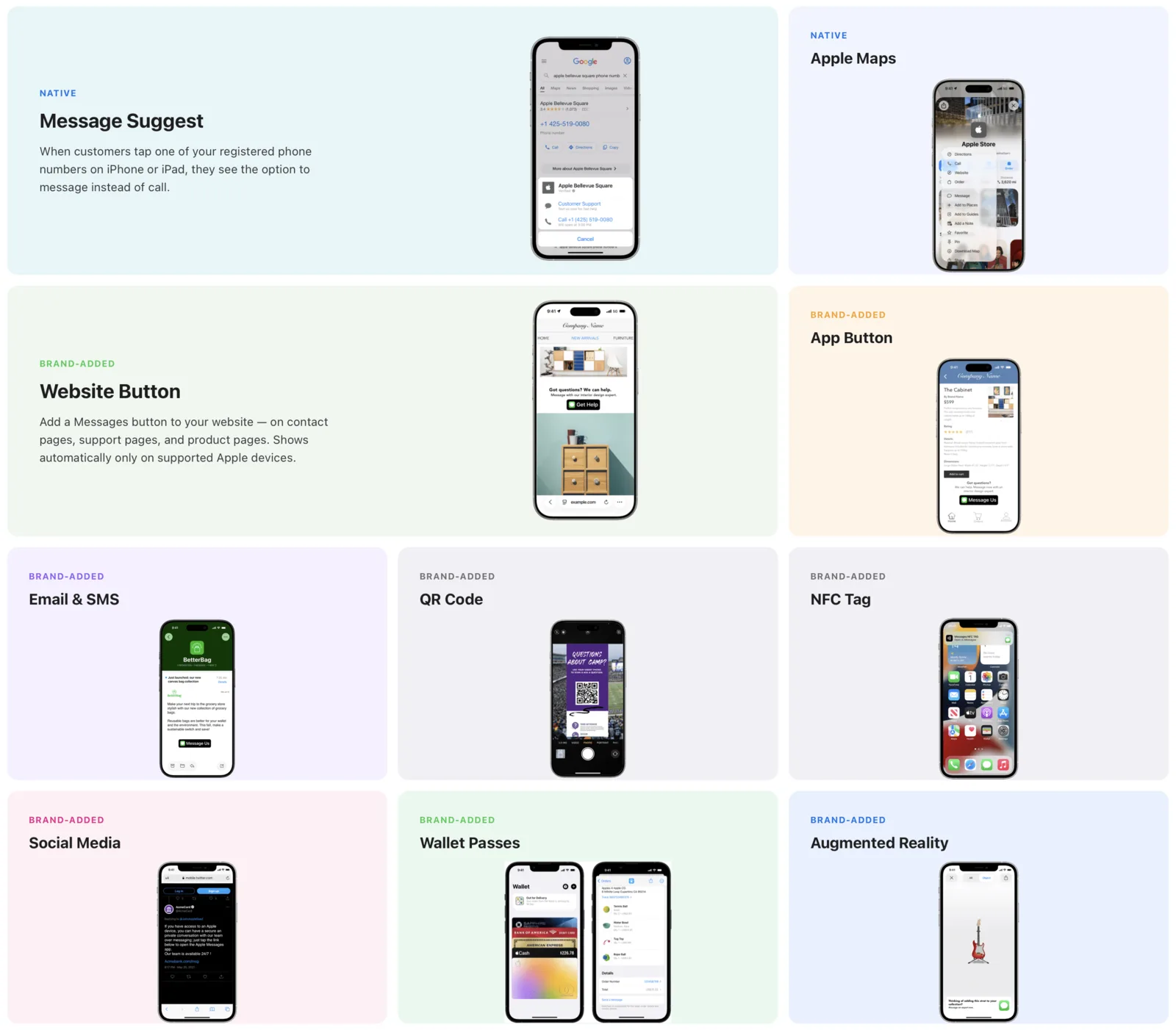
Apple's entry points, from Apple's Message with your customer guide.
Entry points only work for the public once Apple has approved your account to go live. Until then, only the testers on your account can open a conversation. Once live, keep every entry point on around the clock and let automation answer when agents are away.
Link forms
Every entry point is a link to your Business ID, the UUID Apple issues when you register (it's also business_id on your channel in GET /v4/channels). Four forms work:
| Link | Opens | Use it for |
|---|---|---|
https://bcrw.apple.com/urn:biz:<business-id> |
Messages on iPhone, iPad, and Mac. Other devices see Apple's web page instead. | Anywhere the link might be opened on a non-Apple device: websites, emails, social posts, QR codes. |
sms:urn:biz:<business-id> |
Messages directly, without a browser hop. | Buttons and links shown only on Apple devices, and app code. |
imessage:urn:biz:<business-id> |
Messages directly. | Same as sms:. |
imessage://urn:biz:<business-id> |
Messages directly. | Same as sms:. |
All four carry the same parameters, and all four deliver them to you the same way. On a device that isn't an Apple device, the sms: and imessage: forms don't open a conversation, so use the https form whenever you can't be sure who will tap.
Try it with Blooio's own account: sms:urn:biz:53a51e5e-7e08-4ce7-aa95-d7359b0beb52?biz-intent-id=docs&body=Hi%20Blooio.
Parameters
https://bcrw.apple.com/urn:biz:<business-id>?biz-intent-id=order_status&biz-group-id=post_sales&body=Where%20is%20my%20order%3F| Parameter | What it does | Example |
|---|---|---|
biz-intent-id |
Why the customer is here: the placement or use case that opened the conversation. Use it to skip triage and to measure which entry points work. | order_status, product_page, receipt_qr |
biz-group-id |
Which team should answer. | post_sales, reservations, billing |
body |
Text pre-filled in the compose field, so the customer only taps Send. They can edit it first. | Where%20is%20my%20order%3F |
- Give every entry point its own intent ID, even before you route on it, so you can see where conversations come from.
- Encode spaces as
%20, not+. URL builders such asURLSearchParamswrite+, which Apple shows literally. - Keep reserved characters out of values: Apple doesn't allow
& # [ ] ( ) { } /in parameters. - Always pre-fill
body. The customer only has to tap Send, which Apple recommends for every entry point.
How routing reaches you
The customer taps the link, and Messages opens a conversation with your business with body in the compose field. When they send, Messages hands the intent and group to Apple, Apple forwards them with the message, and Blooio puts them on the message.received webhook as routing:
{
  "type": "message.received",
  "data": {
    "chat_id": "chat_018f7b2d-1a2b-7c3d-8e4f-5a6b7c8d9e0f",
    "channel_type": "amb",
    "sender": "urn:mbid:AQAAY0vHZ7w2kQnB4xT1Ld9sXq8RmPzEoFhUj3yNcVt6aWb5",
    "text": "Where is my order?",
    "routing": { "intent_id": "order_status", "group_id": "post_sales" },
    "locale": "en_US"
  }
}
routing is on the message the customer sent from the entry point and on no other message. Later replies in the same conversation don't carry it, so store it against the chat_id if you need it again. If the same customer later taps a different entry point, that new message carries the new intent. A link without biz-intent-id or biz-group-id produces no routing at all. The same field is on the message from GET /chats/{chatId}/messages/{messageId}.
A webhook handler that skips triage when the entry point already says why the customer is here:
app.post("/webhooks/blooio", async (req, res) => {
  const { type, data } = req.body;
  if (type !== "message.received" || data.channel_type !== "amb") return res.sendStatus(200);

  if (data.routing) await saveEntryPoint(data.chat_id, data.routing);

  switch (data.routing?.intent_id) {
    case "order_status":
      await sendOrderLookup(data.chat_id);
      break;
    case "book_service":
      await sendTimePicker(data.chat_id);
      break;
    default:
      await sendTriageQuickReply(data.chat_id);
  }
  res.sendStatus(200);
});
Website button
Apple hosts a script that renders the Messages button, hides it on devices that can't open Messages, and builds the link for you. Add the script once per page, then a container where the button should appear:
<script src="https://static.cdn-apple.com/businesschat/start-chat-button/2/index.js"></script>

<div
  class="apple-business-chat-banner-container"
  data-apple-business-id="<business-id>"
  data-apple-banner-cta="Message Us"
  data-apple-business-intent-id="contact_page"
  data-apple-business-group-id="support"
  data-apple-business-body="I have a question"
>
  <div class="apple-business-chat-fallback-container">
    <a href="/contact">Contact us</a>
  </div>
</div>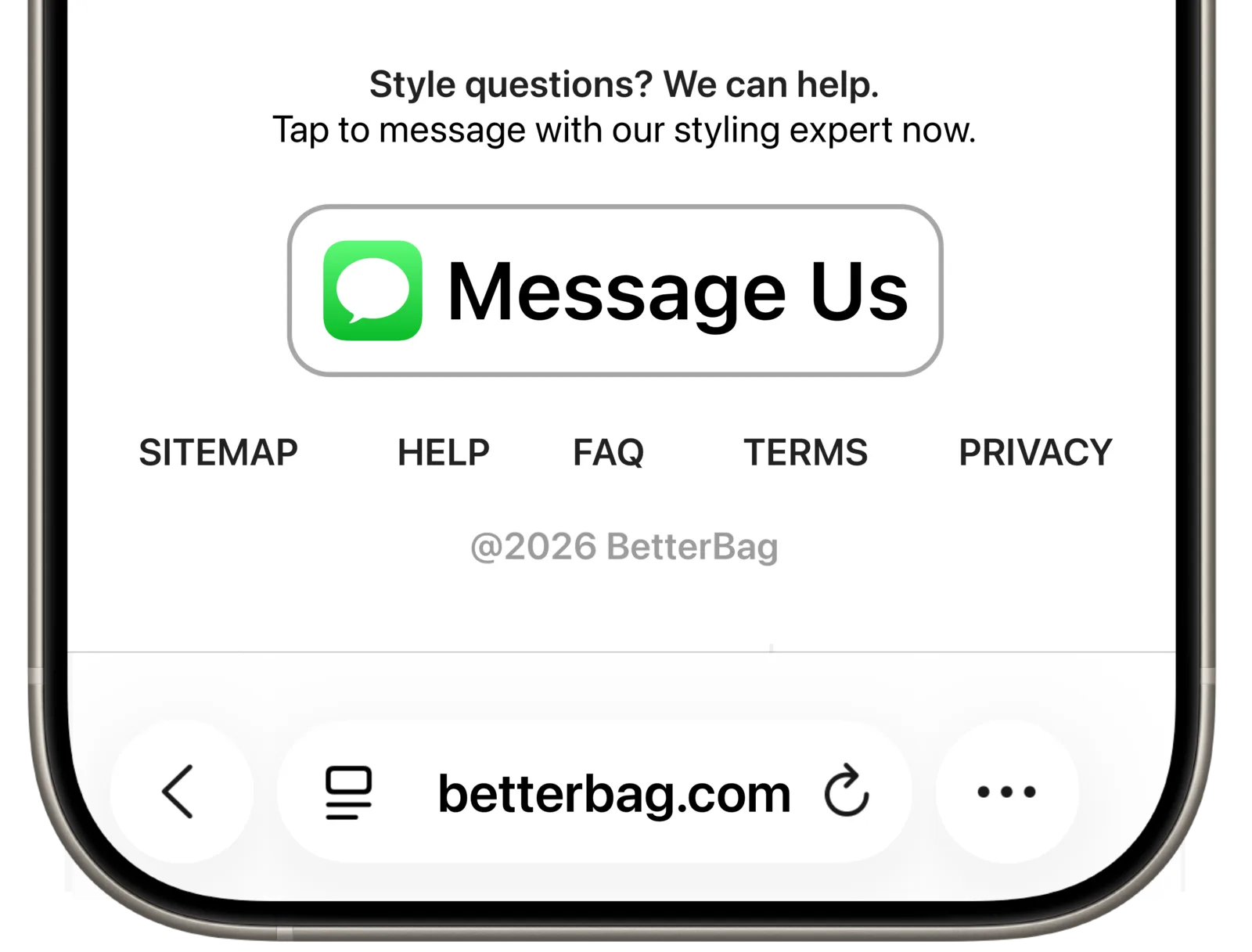
A "Message Us" button on a product site, from Apple's guide.
| Container class | Renders |
|---|---|
apple-business-chat-banner-container |
A banner with your call to action. Needs data-apple-banner-cta or data-apple-banner-context. |
apple-business-chat-message-container |
The Messages icon on its own, for compact spaces. |
apple-business-chat-phone-container |
A phone button that offers Messages on Apple devices and calls data-apple-business-phone elsewhere. |
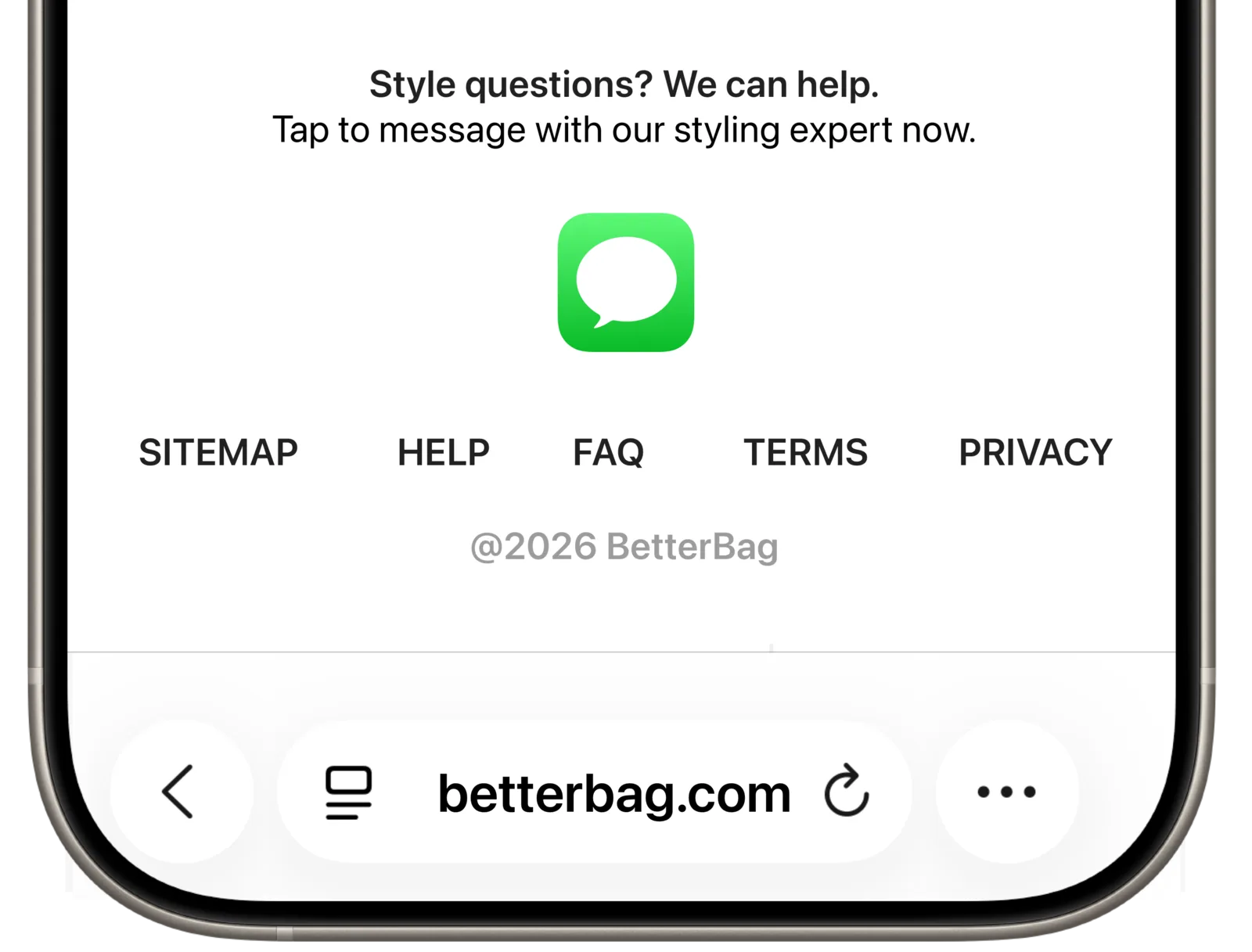
The icon-only variant, for widgets and toolbars.
- Required:
data-apple-business-id. Routing and pre-fill:data-apple-business-intent-id,data-apple-business-group-id,data-apple-business-body. - Banner styling:
data-apple-banner-background-color,-text-color,-icon-color,-icon-background-color,-orientation,-scale(1 to 2),-rounded-corners, and-font-family. Icon styling:data-apple-icon-title,-color,-background-color, and-scale. - Unsupported devices (anything older than iOS 11.3 or macOS 10.13.4, and every non-Apple device) see the
apple-business-chat-fallback-containercontents instead, or nothing. A banner with a phone number still shows so the customer can call. - Single-page apps: the script scans the page once, on load. Call
window.appleBusinessChat.refresh()after rendering a new container, andwindow.appleBusinessChat.isSupported()to decide whether to render one at all.
If you'd rather use your own markup, link Apple's button artwork to the https link form and show it only on Apple devices. Either way, the branding guide covers which call to action to use and where to put it.
In your app
Open the link from a button. On iOS and macOS the system hands it to Messages:
let url = URL(string: "sms:urn:biz:<business-id>?biz-intent-id=app_order_detail&body=Question%20about%20order%2048213")!
UIApplication.shared.open(url)
Show the button only on Apple platforms. In a cross-platform app, hide it on Android or swap in your other support channel.
Email, SMS, and social
Use the https://bcrw.apple.com form. Email clients and social apps link https URLs reliably, and the link still opens Messages on Apple devices. Give each campaign or template its own biz-intent-id (shipping_email, instagram_bio) so the first message tells you which one worked. For SMS deflection from your phone tree, text the caller the same link: "Skip the hold. Message us in Apple Messages: https://bcrw.apple.com/urn:biz:…".
QR codes and NFC tags
Encode the https link, so a scan from any phone lands somewhere sensible. Use a distinct intent per location or surface (store_042_counter, packaging_insert) and pre-fill a body that matches the moment ("I'd like help with my order"). Print a call to action next to the code, such as "Questions? Scan to message us in Apple Messages."
Message Suggest
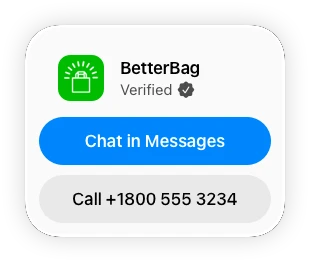
When an iPhone user taps one of your registered phone numbers on your website, in search results, or in Apple Maps, they're offered a conversation in Messages instead of a call. It's the strongest call-deflection lever on the channel.
The phone number on your brand profile (or on your location, when you have only one) is turned on automatically by Show Message buttons for iOS and macOS in Apple Business Register. To add your other numbers, email the Message Suggest form to business-register@apple.com with:
- Every primary and high-volume number, not just the main line.
- Your phone hours.
- The title and subtitle to show (up to 120 and 170 characters).
- Translations, if you serve more than one language.
- The
biz-intent-idandbodyfor each number. - Current call volume and agent count.
Make the numbers tappable on your site in E.164 (<a href="tel:+18005550199">), set up an out-of-hours reply, and allow 5 to 7 days to propagate. Message Suggest only appears when the device's region matches your business's country. Blooio prepares the form with you.
Apple Maps and the Business Card
Show Message buttons for iOS and macOS in Apple Business Register also adds a Messages button to your place card in Apple Maps and to your Business Card. Maps buttons appear only in regions where Apple offers them, and only for brands with public locations; Apple configures them from your account type (online only, one location, or multiple locations).
Wallet, AR, Siri, and Spotlight
- Wallet passes: boarding passes, tickets, loyalty cards, and order tracking can link to your entry point.
- Augmented reality: an AR Quick Look experience can open your link from its custom action button.
- Siri and Spotlight: searching for your brand on an Apple device can offer the Messages button once your account is live with Message buttons on.
Each one is the same link, so give each its own biz-intent-id.
Testing
- Add your test Apple Accounts in Apple Business Register (testers). Only those devices reach the business before go-live.
- Open each link form on a tester's iPhone and Mac, and send the pre-filled body.
- Check the
message.receivedwebhook has theroutingyou expect, and that your handler branches on it. - Scan every QR code, and open each email link from the mail apps your customers use.
If the conversation opens but routing is missing, check the parameter names (biz-intent-id, not intent-id) and that the values contain no reserved characters.